🇬🇧 English | 🇮🇹 Italiano


Extract burned-in subtitles from your videos into clean SRT files, with Apple's own OCR. A native Mac app: fast, offline, no hallucinations.
SubVision reads the subtitles pressed into the frames of a video (hardsubs)
and turns them into a proper .srt, with a review report next to it where I
check and fix the few lines the OCR wasn't sure about. It is built for
accuracy first: the defaults always favour quality over speed, so there is
as little to fix by hand as possible.
Why Apple Vision instead of an LLM or a vision-language model:
- It doesn't hallucinate. It reads the glyphs that are there; if there is no text, it returns nothing.
- It's fast. It runs on the Neural Engine, about 18 frames a second, many times faster than a VLM.
- It's deterministic and fully offline. Your videos never leave the Mac.
SubVision 2.0 is a native macOS app written in SwiftUI. Version 1.x was a Python program with a browser interface: that interface is gone, and the engine that reads the subtitles now runs inside the app. What changed is in the release notes and in the changelog.
The app is in English and Italian, light or dark (Settings › General).
- A Mac with Apple Silicon (M1 or later).
- macOS 26 (Tahoe) or later.
- An internet connection on the first launch only: SubVision downloads Python and its video tools (about 107 MB), then works offline.
- Nothing else. You don't need Python, Homebrew or FFmpeg beforehand.
On an Intel Mac or an older macOS, SubVision 1.0.0 is still available from its release page.
-
Download
SubVision-v2.0.0-macos-app.zipfrom the latest release, unzip it and dragSubVision.appinto your Applications folder. -
Open it. The first time, macOS refuses, because SubVision has an ad hoc signature only: it isn't signed with an Apple Developer ID nor notarized. Open System Settings › Privacy & Security, scroll down to the message about SubVision, click Open Anyway and confirm. You only do this once.
If you prefer the Terminal, removing the quarantine flag that macOS puts on downloaded files has the same effect:
xattr -dr com.apple.quarantine /Applications/SubVision.app
-
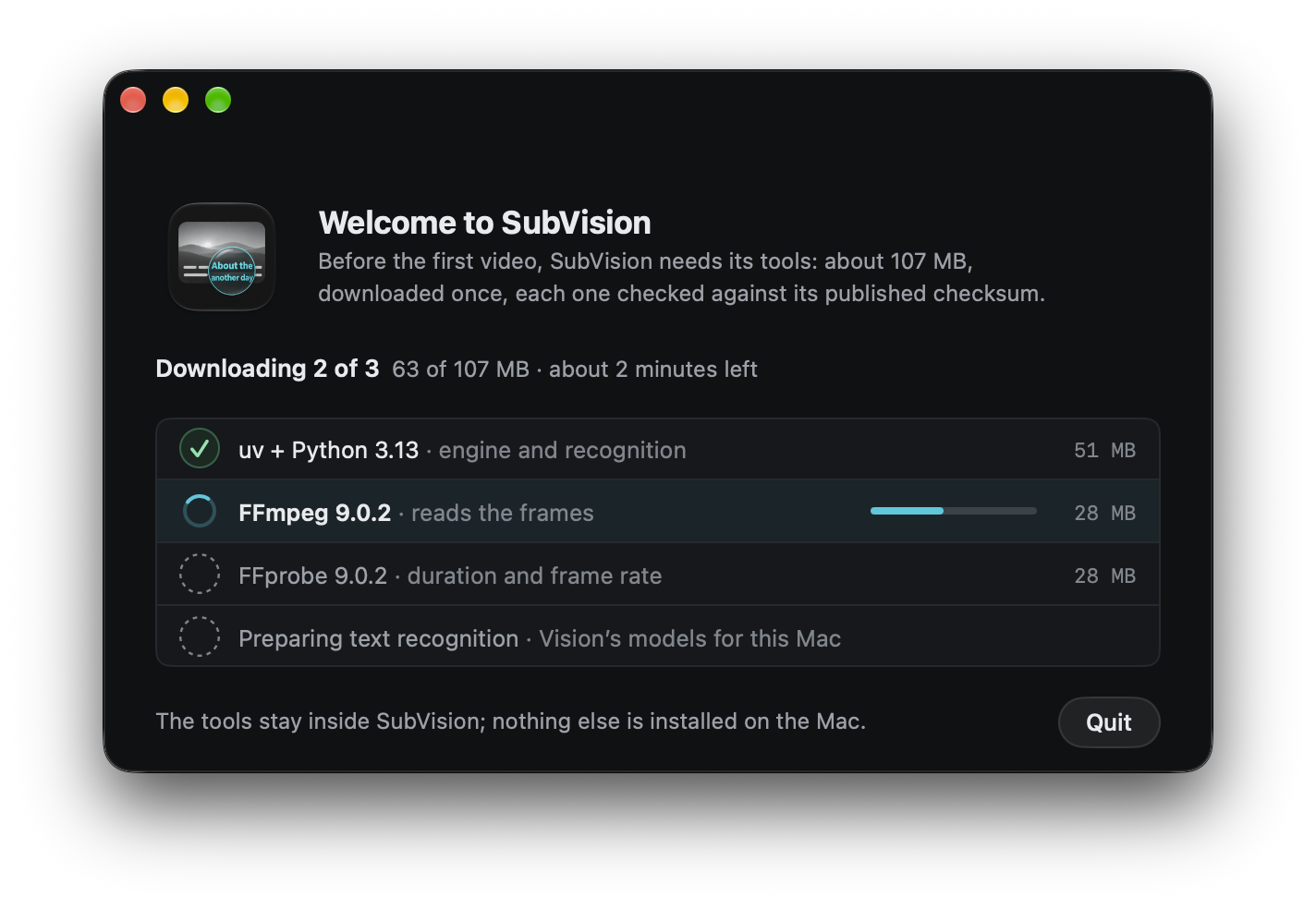
A window lists what SubVision prepares before the first video, each with its own progress:
Row What it is uv + Python 3.13 the private Python environment of the engine, made with uv FFmpeg 9.0.2 reads the frames of the video FFprobe 9.0.2 reads the duration and the frame rate Preparing text recognition Vision prepares its models for this Mac: about 30 seconds, once for each version of macOS Every download comes from a pinned release and is checked against its checksum (SHA256) before it is used; a damaged file is set aside and downloaded again. If the connection drops, Try Again picks up where it stopped. If you quit during the preparation of text recognition, it starts again at the next launch.
After that, SubVision opens straight on the Video page and works offline.
Everything SubVision downloads stays in one folder; nothing else is installed on the Mac:
In ~/Library/Application Support/SubVision |
What it is |
|---|---|
bin/ |
uv, and the downloaded ffmpeg and ffprobe |
.python/, .venv/, .cache/ |
Python, the engine's packages and their caches |
ignore.txt, corrections.txt |
your two lists (see Lists) |
records/ |
the logs of the app and of the engine, and the list of your videos |
tmp/ |
work folders of the batch (removed when a file is done), the frames of the Preview and the small frames shown in the list |
The outputs never go there: they go next to your videos.
The window has three pages, Video, Review and Sub fix, as tabs in the bar at the top (⌘1 ⌘2 ⌘3). The Preview opens inside the Video page, and the review report inside the Review page, each with a way back to its list.
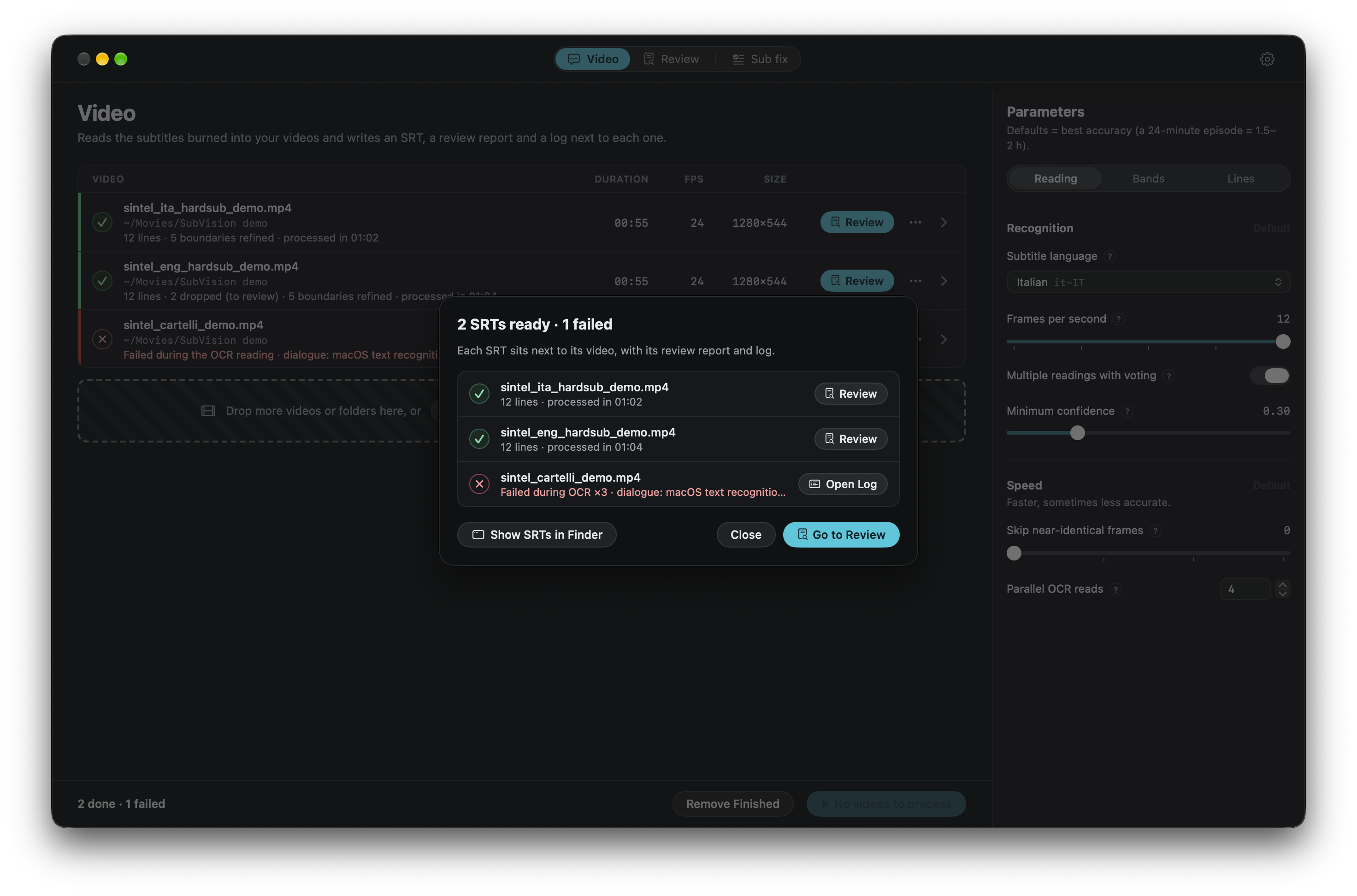
- Add your videos to the Video page: drop files or whole folders on the window, or click Choose Videos… (⌘O). Subfolders are included; anything that isn't a video is skipped, with a note that says what was left out. New videos come in checked, ready to process.
- Check the bands in the Preview (the Preview button of a row, or ⌘Y): it finds 20 frames with text by itself; drag the two bands on a frame until the subtitles fall inside, and try the OCR on that frame.
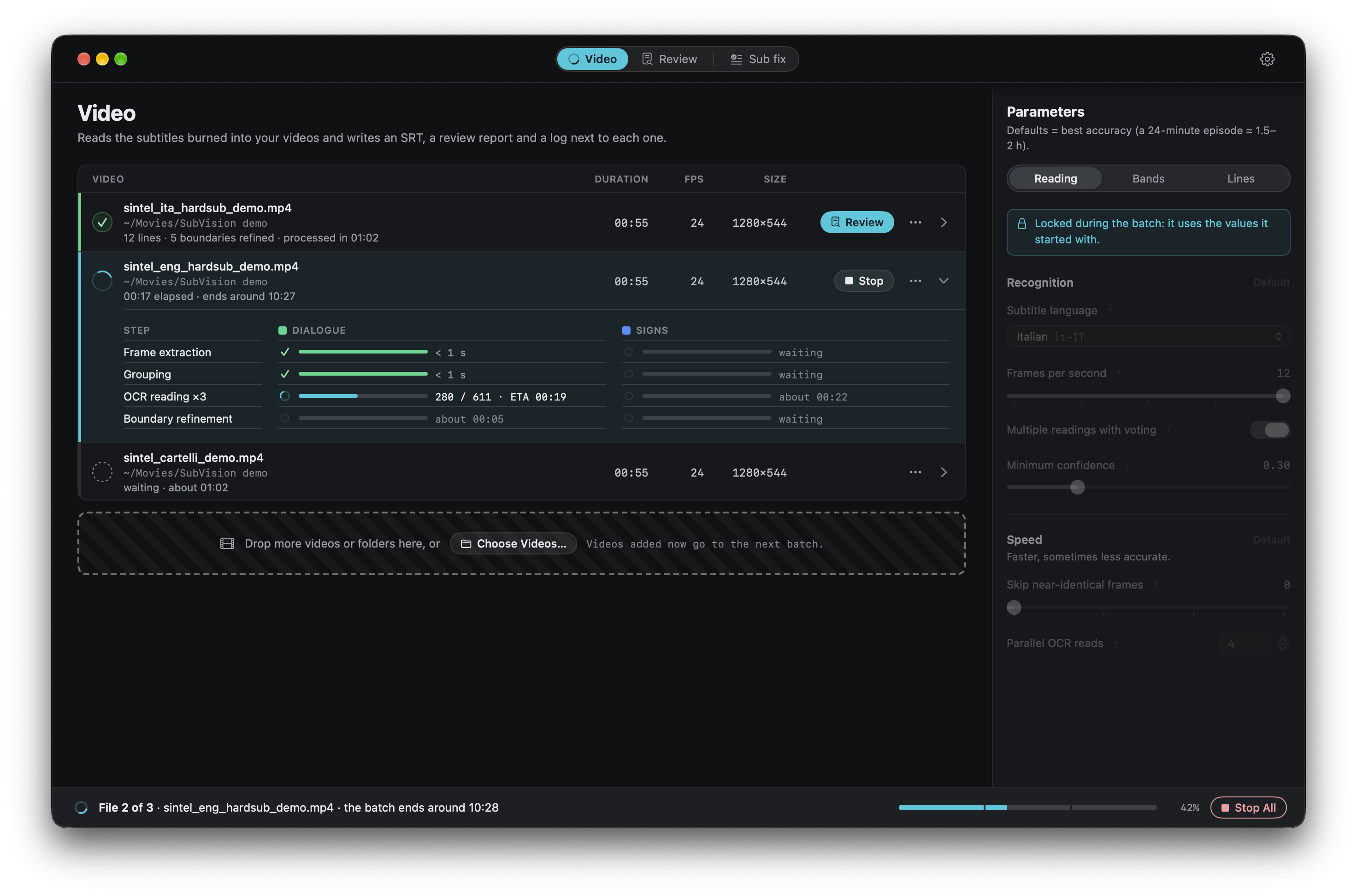
- Process (⌘↩): the button at the bottom says what it will do, such as Process 2 videos. Each file shows its steps as it runs, with speed and time left.
- Review: the Review button of a finished row opens its report on the Review page, where I check the doubtful lines and save the reviewed SRT.
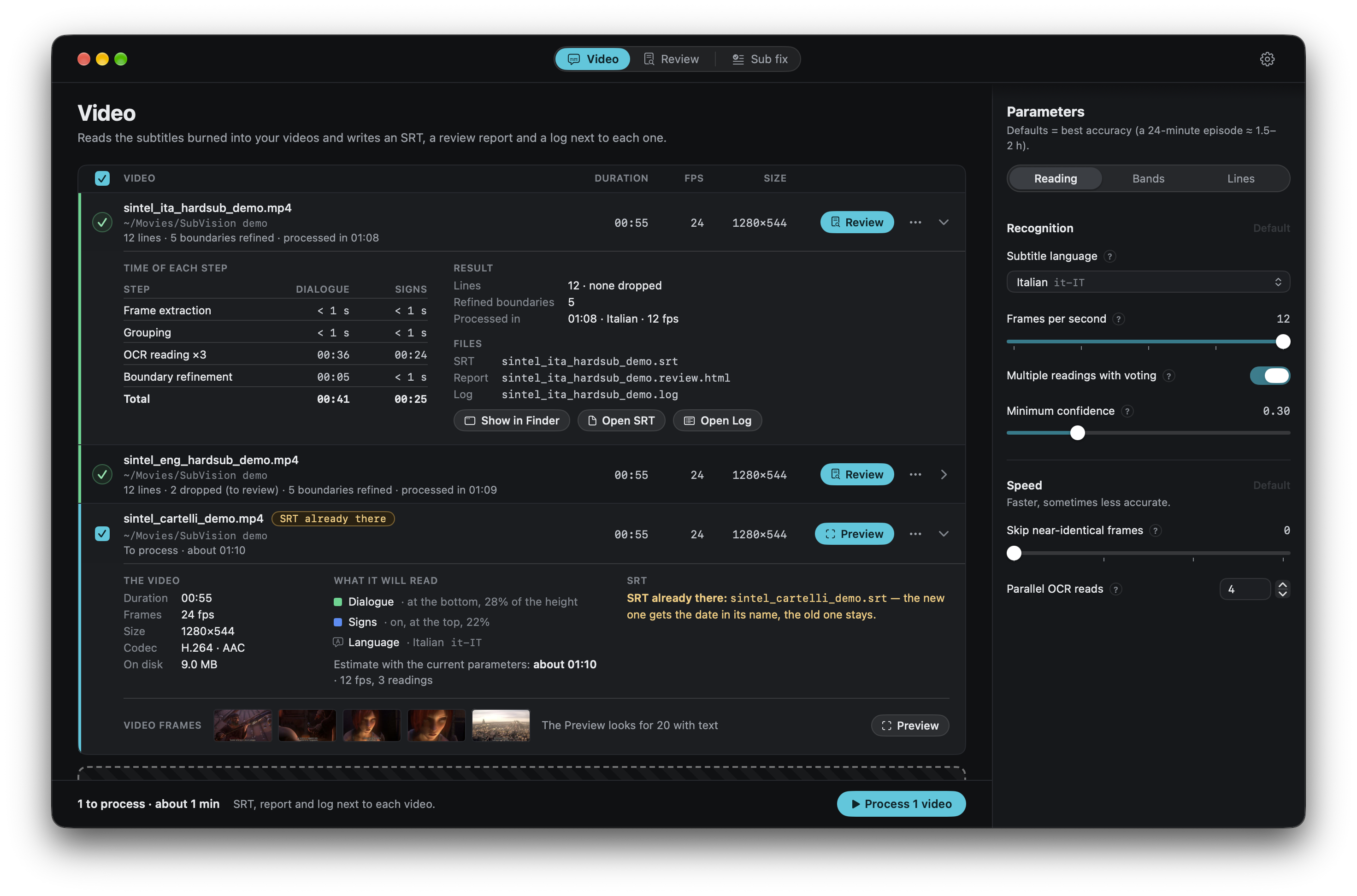
- The list of your videos, with duration, frame rate and size, kept between launches. The strip under the list takes more videos at any time; videos added during a batch go to the next one.
- One checkbox per row: to process. New videos come in checked. The checkbox in the header checks or unchecks all the videos to process at once, and shows a − when only some are checked. A finished video shows its outcome instead; check it and it is marked will be redone (the new SRT gets the date in its name, the old one stays). A file that can't be read or isn't there any more has no checkbox and stays out of the batch.
- Click a row to open it. A finished video shows the time of each step for the dialogue and the signs, its result (lines, lines dropped, refined boundaries, gaps without subtitles) and its files, with Show in Finder, Open SRT and Open Log. A video still to process shows what is known before starting: the video itself (duration, frame rate, size, codecs, size on disk), what it will read (the two bands and the language), an estimate with the current parameters, an SRT already next to it (in yellow: the new one gets the date in its name) and five frames of the video, which become the Preview's 20 once it has looked for them. A failed or stopped file says what happened and at which step.
- One main action per row: Preview, Review or Retry, and Stop on the row in progress. The ⋯ menu holds everything else, and it is the same as the right-click menu.
- The keyboard works on the list: ↑ ↓ move the focus from row to row, Space or → opens a row and ← closes it, ⌫ removes it from the list (⌘Z puts it back), ⌘A checks every video.
- Process (⌘↩) runs the checked videos, one file at a time; next to the button, how many there are and about how long they will take (the estimate learns from the files already done). The row in progress opens by itself and shows its steps, for the dialogue band and, when it is on, the signs band: Frame extraction (with FFmpeg), Grouping (frames that repeat the previous one aren't read twice), OCR reading (each frame read three times, with voting) and Boundary refinement (start and end of each line moved to the video's own frames). The step in progress shows how far it is, its time left and its speed.
- The batch bar sits at the bottom of every page while a batch runs, and the Video tab spins: File 2 of 3, the name of the file and when the batch should end, a bar with one segment per file, as wide as its duration, the percentage and Stop All. Clicking the text shows the file in progress on the Video page.
- Stop the current file (⌥⌘., or Stop on its row) or Stop All (⌘.), each with a confirmation. A stopped file never leaves a half-written SRT, and the batch goes on with the next one; after Stop All, the videos that didn't start stay checked for the next batch.
- The outcome stays on each row: done with its number of lines, done but with no subtitles found, failed (at which step, and why, with its log one click away) or stopped by you. Retry processes a failed or stopped file again at once; during a batch it queues it instead (Queued, after the batch), and it starts by itself when the batch ends.
- At the end of the batch a sheet appears over whatever page is open: the SRTs made, with Review for each file, the files that failed with their reason and their log, Show SRTs in Finder and Go to Review. The Dock icon shows the progress of the batch while it runs, and macOS notifications tell you when files and the batch are done (both can be turned off in Settings › General).
- Closing the window doesn't stop the batch: it goes on, with its progress on the Dock icon, and clicking the icon brings the window back. ⌘Q asks first, then stops the batch; the SRTs already made stay.
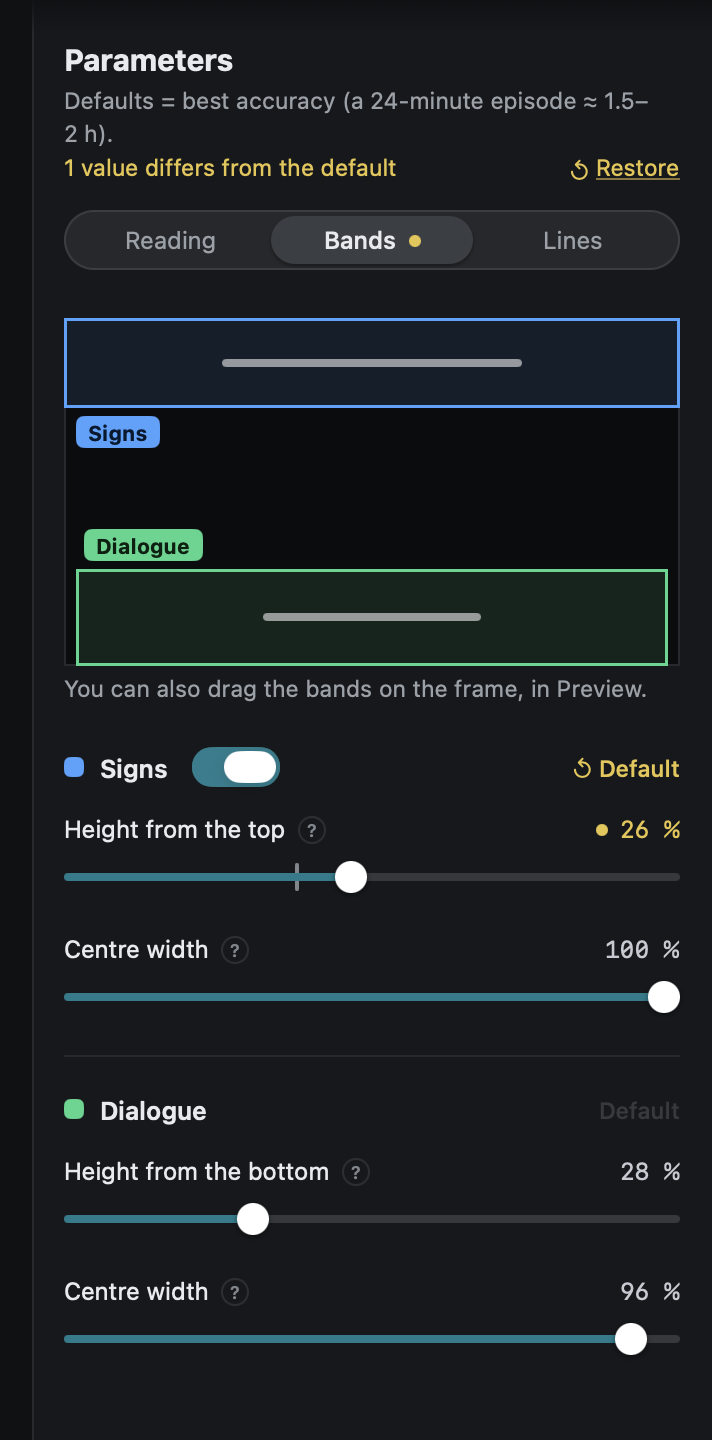
On the right of the Video page, Preview included, the Parameters panel is always open and holds every OCR setting, in three tabs: Reading, Bands and Lines. The defaults aim at the best accuracy: a 24-minute episode takes about 1.5–2 hours. Every value has a (?) with a full explanation, and its default written under it. A value that differs from its default is in yellow (amber in the light appearance), with a dot on its tab, and a grey tick on the slider marks the default: click the tick to go back to it. ↺ Restore puts every value back to its default, and ⌘Z undoes it. The values are kept between launches; while a batch runs the panel is locked, in grey, because the batch uses the values it started with.
Reading
| Setting | Default | What it does |
|---|---|---|
| Subtitle language | the language of macOS, if Vision reads it; otherwise English | the language of the burned-in subtitles: it helps the OCR with accents and apostrophes. The menu lists the languages Vision reads on your Mac; Settings › General sets the default |
| Frames per second | 12 (4–12) | how many frames a second are read; lower is faster but may miss very short lines |
| Multiple readings with voting | on | each frame is read three times (Vision as is, Vision with more contrast, LiveText) and the reading with the most confidence-weighted votes wins; about three times the OCR time |
| Minimum confidence | 0.30 | text read with less confidence is ignored (it still ends up in the review report) |
| Skip near-identical frames | 0 (0–3) | 1 is about 20–30 % faster with the same timing; 2 or more is faster with less reliable boundaries |
| Parallel OCR reads | 4 (1–8) | doesn't change accuracy: the Neural Engine is the limit |
Bands
| Setting | Default | What it does |
|---|---|---|
| Signs band | on | a second pass on the top of the frame for signs and translator notes, written in the SRT with {\an8}; switching it off halves the time |
| Signs: height from the top | 22 % (5–50) | how much of the top of the frame is read |
| Signs: centre width | 100 % (50–100) | narrower keeps out watermarks in the top corners |
| Dialogue: height from the bottom | 28 % (5–80) | must hold two-line subtitles too |
| Dialogue: centre width | 96 % (50–100) | narrower keeps out corner logos but may cut long lines |
Lines
| Setting | Default | What it does |
|---|---|---|
| Shortest line | 0.20 s | shorter lines are dropped as flashes; the review report keeps them, ready to bring back |
| Merge similar lines within | 0.6 s | two lines with the same or similar text closer than this become one (fades) |
| Wrap lines at | 42 characters | longer lines are split into two or three balanced lines, preferably after punctuation, never after an article or a preposition, never inside a word |
| Refine timing to native frames | on | start and end recomputed at the video's own frame rate: about ±20 ms instead of ±40–120 ms |
| Review report | on | writes the review report next to the SRT; almost free |
| Flag gaps without subtitles over | 6 s | longer stretches without subtitles are listed in the report as possibly missed lines |
| Use ignore.txt | on | drops the phrases of your ignore list |
| Use corrections.txt | on | applies the replacements of your corrections list |
How long it takes, for a 20–24 minute episode on an Apple Silicon Mac:
| Profile | Settings | Time |
|---|---|---|
| Defaults (best accuracy) | 12 fps · skip 0 · multiple readings · signs band · refine | about 1.5–2 hours |
| Balanced | 8–10 fps · skip 1 · multiple readings · signs band only if needed | about 30–45 minutes |
| Fast (draft) | 6 fps · skip 1 · single reading · no signs band · no refine | about 5–15 minutes |
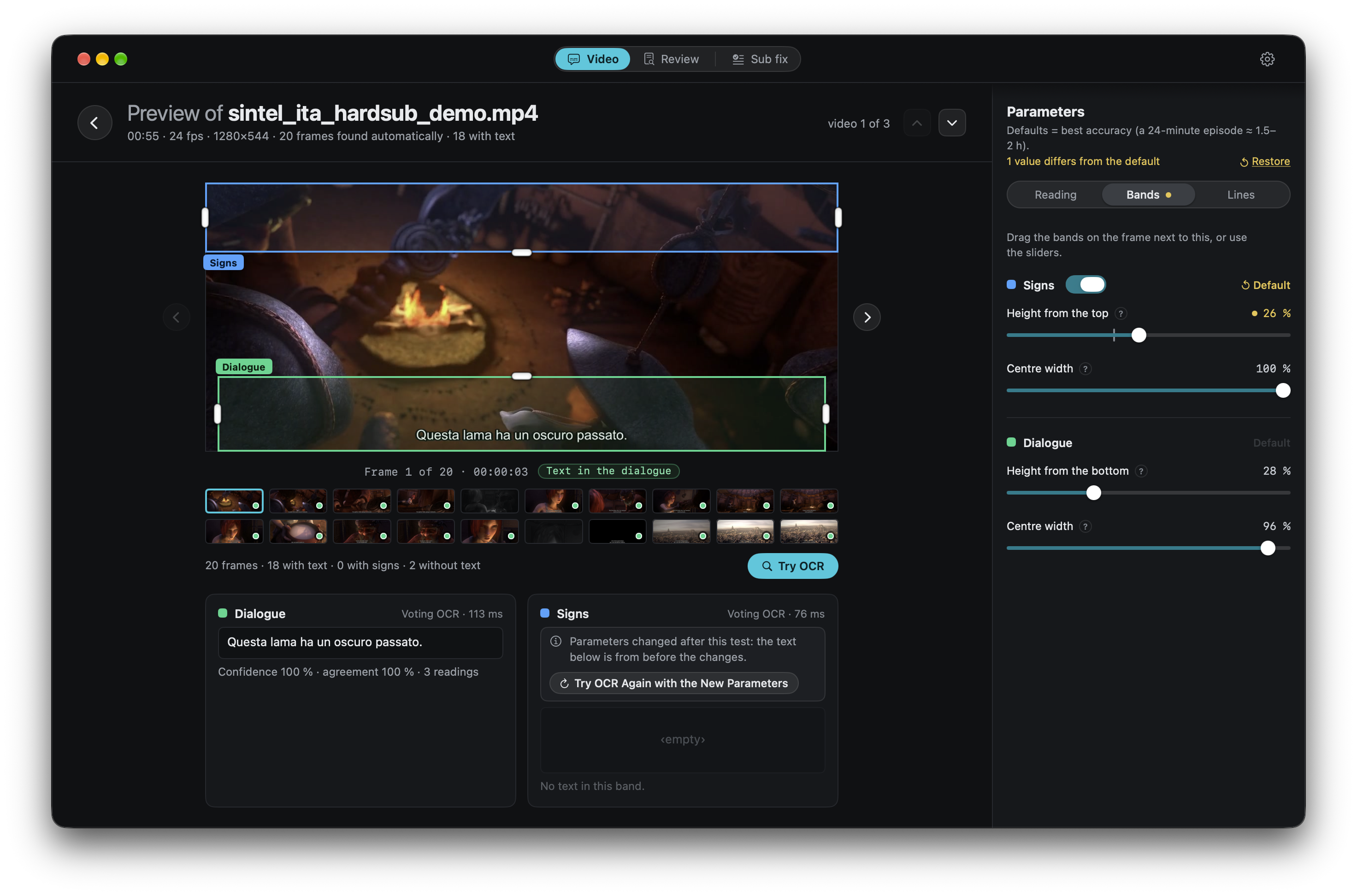
The Preview is where I set the bands before a long batch. It opens inside the Video page, over the list (the Preview button of a row, a frame in an open row, or ⌘Y), with the Parameters panel beside it. Its title band has ‹ to go back to the list (⌘[), Preview of and the name of the video, with its duration, frame rate, size and frames found, and on the right the arrows for the video above and below in the list (⌘↑ ⌘↓).
- It finds 20 frames by itself the first time you open a video: it splits the video into 20 zones and looks in each one for a frame with text (up to three tries per zone). The frames appear as they are found, and they are kept. If the search stops (you stopped it, a batch started, or part of the video can't be read), Try Again picks it up from the zones still missing. Each thumbnail says whether its frame has text in the dialogue band, in the signs band, in both or in neither.
- The bands are drawn on the frame. Drag the edge of a band for its height and its sides for its width (the width stays centred): the values are the same as in the Parameters panel, and change in both places.
- Try OCR (⌘T) reads that frame with the current parameters and shows, for each band, the text read, its confidence and agreement, the alternative readings and the final text as it would go in the SRT. The results stay with their frame while the app is open. If you change a parameter that matters after the test, the panel says so (the text below is from before the changes) and Try OCR Again with the New Parameters redoes it.
- During a batch the frame search and Try OCR wait for it to end.
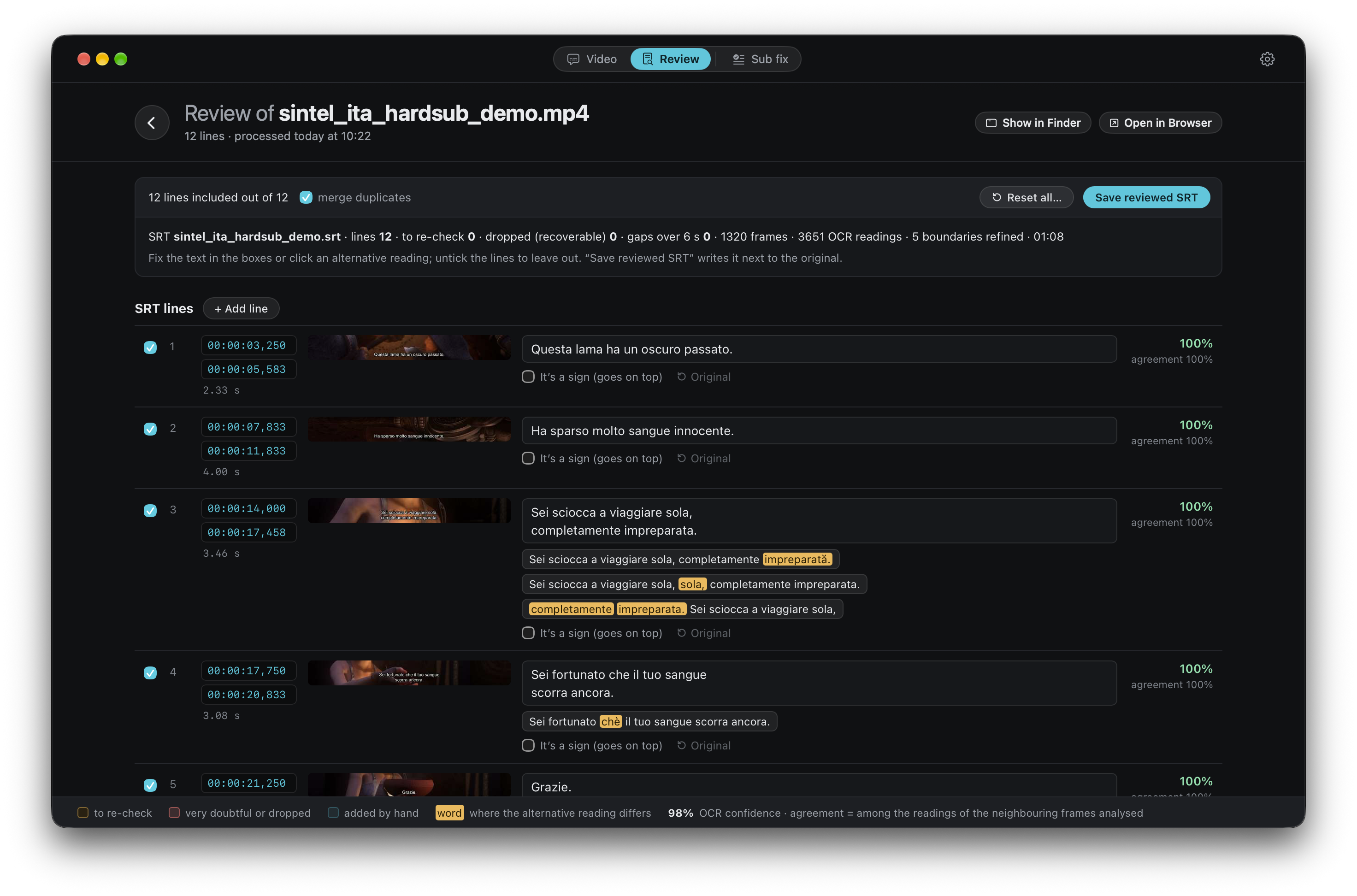
The Review page lists the videos processed, with their lines, the gaps without subtitles and when they were processed. A Reviewed SRT tag says that a reviewed SRT is already next to the video, review missing that the report isn't there any more. Click a row, or Open, and the video's review report opens in the page, under a title band: ‹ goes back to the list (⌘[), Review of and the name of the video with its lines, the lines to re-check, the gaps and when it was processed, and on the right Show in Finder and Open in Browser. Every Review in the app leads there: the button of a row on the Video page, ⌘R, the end-of-batch sheet and the notification of a finished file.
The review report is an editor, not just a report. In it:
- a bar that stays at the top while you scroll holds the lines included, merge duplicates, Reset all… (it asks first, and says what would be lost) and Save reviewed SRT (⌘S);
- every line has its frame, its start, end and duration, its confidence and the agreement between the readings; doubtful lines are highlighted, and a thin legend at the bottom of the page explains the colours;
- the text is editable, and alternative readings apply with one click, with the words that differ highlighted; ↺ Original puts back what the OCR read, sign box included;
- It's a sign (goes on top), under each line, writes it in the SRT at the
top of the screen (with
{\an8}); - lines can be included or excluded, and the flashes and noise readings that were dropped (Dropped) can be brought back;
- Gaps without subtitles longer than the threshold of Parameters › Lines (6 s by default) are listed with a frame from the middle of each gap, and + Add a line here adds one with its times already inside the gap; + Add line adds one with empty times, to fill in. Lines added by hand have a + instead of their number, and next time they are in their place among the others;
- Save reviewed SRT writes
<video>-reviewed-<date>.srtnext to the original SRT, which stays as it was. If that folder can't be written to, the app offers Choose Where to Save….
Your edits are saved as you go in <video>.review.json, next to the report:
leave the report, open it again, and they are still there. The report
follows the language of the app. It is also a plain HTML file: Open in
Browser opens it in your browser, where it works on its own, offline.
File › Open a Review… (⌥⌘O) opens any review report, including those
made by SubVision 1.x and by the first 2.0 builds: they are shown with the
current layout, in the language of the app, and the file itself is never
changed.
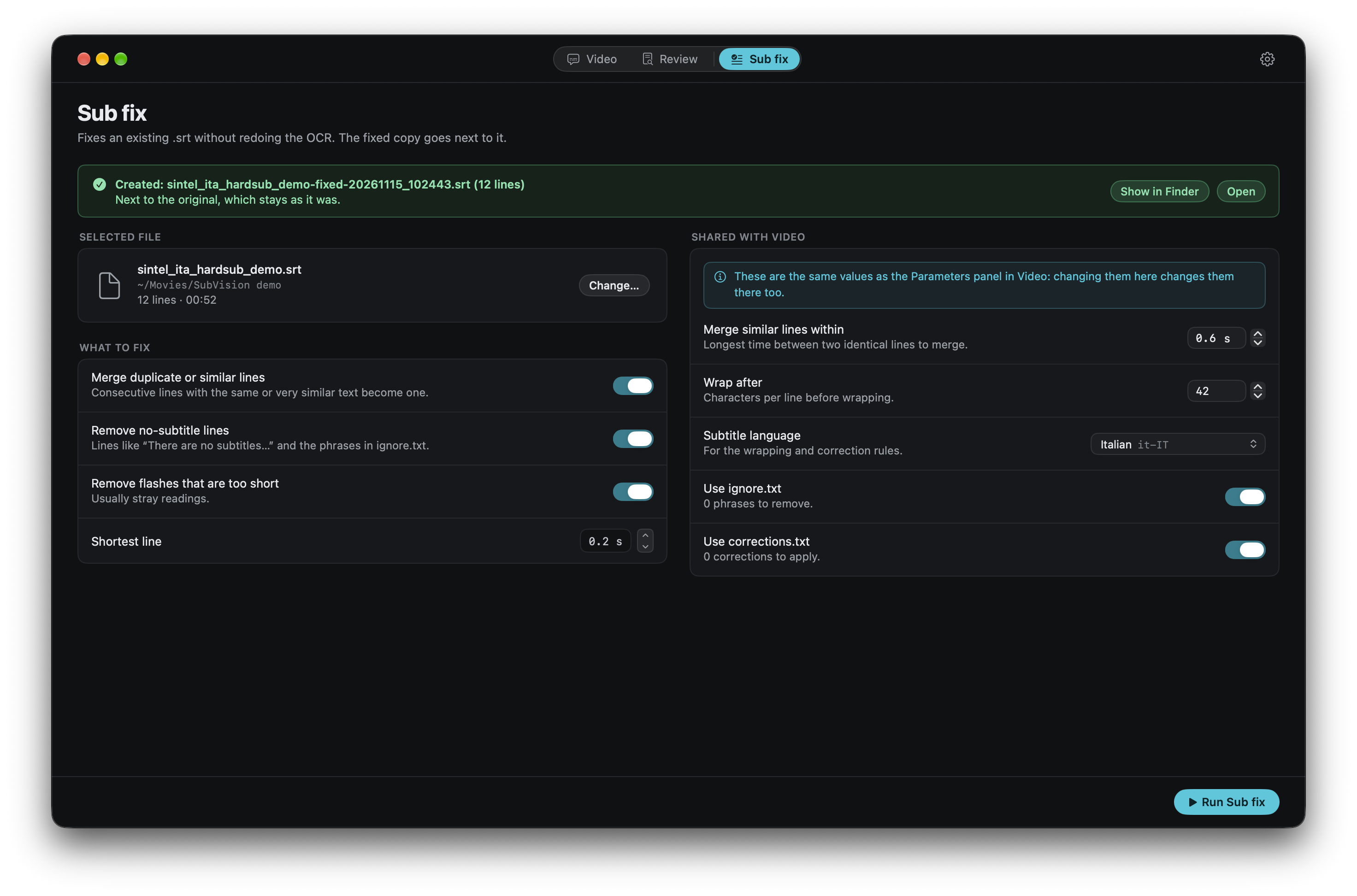
Sub fix cleans an existing .srt without redoing the OCR, in a few
seconds. SRTs made by SubVision are already clean: Sub fix is for the ones
from elsewhere (old files, downloads, files edited by hand), or to apply new
corrections.txt rules to episodes already processed.
Drop an .srt on the page or choose it (Choose SRT…, ⇧⌘O), choose
what to fix (merge duplicate or similar lines, remove the lines without
subtitles and the phrases of ignore.txt, remove flashes shorter than a
minimum) and Run Sub fix (⌘↩). The fixed copy, <name>-fixed-<date>.srt, goes next to the
original, which stays as it was. The values shared with the Video page
(merge gap, line wrap, language, the two lists) are on the same page, and
changing them there changes them for Video too. Sub fix also works while a
batch runs, with the batch bar at the bottom (the shared values are locked
until it ends).
Everything goes next to the video. Nothing is ever overwritten.
| File | What it is |
|---|---|
<video>.srt |
the subtitles. If an SRT with that name is already there, the new one is <video>_YYYYMMDD_HHMMSS.srt (and so are its report and log) |
<video>.review.html |
the review report (unless it is switched off in Parameters › Lines) |
<video>.log |
the log of the file: every step, its time and its outcome |
<video>.review.json |
your edits in the review report, written by the app |
<video>-reviewed-YYYYMMDD-HHMM.srt |
the reviewed SRT, saved from the review report |
<name>-fixed-YYYYMMDD_HHMMSS.srt |
the copy made by Sub fix, next to its source |
Two text files in SubVision's folder, edited from Settings › Lists (Edit… opens them in your text editor):
ignore.txt: phrases to drop, one per line,#for comments. Watermarks, fansub logos, fixed text on screen.corrections.txt: automatic replacements, one per line, in the formwrong => right(case-insensitive). It's the weapon for the typos the OCR will always make, like a name in an impossible font: one line such asFlamilion => Hamiltonfixes every episode of the series. It applies to the batch, to Try OCR and to Sub fix.
Import… brings in a list you already have (it can replace the list or add to the end of it); Restore the Starter List… goes back to the one SubVision starts with.
Settings (⌘,, or the gear at the right of the tab bar) has four tabs, with the default written under each setting:
- General: the app's language (it starts in the language of macOS), the default subtitle language (the one the Parameters start from and go back to: the language of macOS if Vision reads it, otherwise English), appearance (System, Light, Dark), macOS notifications, progress on the Dock icon.
- Tools: which FFmpeg and FFprobe to use: the downloaded ones (default), the ones from Homebrew when it has both, or A folder of mine… with both inside; Download Again; the versions of the engine and of Python, and the languages Vision reads on this Mac.
- Lists:
ignore.txtandcorrections.txt(see above). - Updates: SubVision checks GitHub for a new release at launch, at most once a day. When there is one, a SubVision 2.x available capsule appears in the tab bar, next to the gear, and opens the release page. You can turn the check off, or check now (also from the SubVision menu).
Tools and Lists are locked while a batch runs: the batch uses the tools and lists it started with.
| Shortcut | Action |
|---|---|
| ⌘O | Choose Videos… (adds them to the list) |
| ⇧⌘O | Choose SRT… (Sub fix) |
| ⌥⌘O | Open a Review… |
| ⌘↩ | Process the checked videos (on Video) · Run Sub fix (on Sub fix) |
| ⌥⌘. / ⌘. | Stop the Current File / Stop All |
| ⌘R | Review the video with the focus |
| ⌘S | Save the reviewed SRT (with a report open) |
| ⇧⌘R | Show in Finder |
| ↑ ↓ · Space → ← | Move the focus in the list · open and close the row |
| ⌫ | Remove the row with the focus from the list (⌘Z puts it back) |
| ⌘A | Check every video (on Video) |
| ⌘Y | Open the video with the focus in the Preview |
| ⌘T, ⌘← ⌘→ | Try OCR, previous and next frame (in the Preview) |
| ⌘↑ ⌘↓ | Previous and next video (in the Preview) |
| ⌘[ | Back to the list, from the Preview or a report |
| ⌘1 ⌘2 ⌘3 | Video, Review, Sub fix |
| ⌘0 | Bring back the main window |
| ⌘, | Settings |
| ⌥⌘L | Open the app's log in Console |
Every shortcut is also in the menus. The SubVision menu holds the version (About SubVision), Check for Updates… and SubVision on GitHub.
The window opens at least 1360 × 860 pt (almost the whole screen, on a smaller one), so the list and the Parameters panel fit side by side. It can be made narrower: below 1100 pt the panel retracts to a button in the top bar, and opens over the page (⌥⌘I).
The demo uses a 55-second dialogue clip from Sintel, the Blender Foundation open movie (CC-BY 3.0, © copyright Blender Foundation | durian.blender.org), with Italian and English subtitles burned in. To keep the repository light, the demo files are attached to the Demo material release:
| File | What it is |
|---|---|
sintel_ita_hardsub_demo.mp4 / sintel_eng_hardsub_demo.mp4 |
55 s clips with burned-in subtitles (IT / EN), about 9 MB each |
sintel_ita_hardsub_demo.srt / sintel_eng_hardsub_demo.srt |
the SRT extracted by SubVision |
sintel_ita_hardsub_demo.revisione.html / sintel_eng_hardsub_demo.revisione.html |
the review report of each run, made by SubVision 1.0 (open it in a browser, or in the app with File › Open a Review…) |
Accuracy measured on the demo with a fast profile (6 fps, skip 1, no timing refinement, no signs band; about 20 seconds per clip):
- Italian clip: 12 of 12 subtitle lines found, text character for character identical to Sintel's official SRT. SubVision 2.0 writes the very same SRT, byte for byte, as the one in the release.
- English clip: 12 of 12 lines found, text identical to the official SRT.
- Timing within about ±0.1 s of the official subtitles even in this fast profile; the defaults also refine the boundaries to the native frame rate (about ±20 ms).
To try it yourself: download a clip, drop it on the Video page, set the Parameters as above (Reading: 6 frames per second, skip 1; Bands: signs off; Lines: refine off) and press Process 1 video. For the English clip, choose English as the subtitle language.
- Multiple readings with voting. Every frame is read three times: Vision as is, Vision with more contrast, and LiveText, Apple's second, independent OCR engine, which makes different mistakes. The text with the most confidence-weighted votes wins.
- Voting per line. The final text of a line is the one that won across all the frames where it was visible (dozens of readings), not a single read.
- Timing refinement. Start and end are recomputed at the video's native frame rate.
- Signs band. An optional second pass on the top of the frame, written
with
{\an8}(top position). - The review report. Every doubtful line is easy to find and fix, with the alternative readings one click away.
Under the hood: FFmpeg extracts the frames of each band as they are (no fixed
filters: measured, they made the OCR worse); near-identical frames can be
skipped; Vision reads each frame in its variants and votes; the readings are
cleaned (junk, ignore.txt, graphic noise) and grouped into lines with a vote
per line, with fades merged; the boundaries are refined; the SRT and the
report are written.
The engine is also a command-line program, subvision, the same engine the
app runs. It's mostly a test bench, so this section is all its documentation.
Inside the app it is at SubVision.app/Contents/Resources/SubVision/subvision:
SV="/Applications/SubVision.app/Contents/Resources/SubVision/subvision"
"$SV" extract ~/Movies/ep01.mkv ~/Movies/ep02.mkv   # SRT + review report + log next to each video
"$SV" extract clip.mp4 --lang en-US --fps 6 --skip-hamming 1 --no-refine --no-top
"$SV" fix old.srt                                   # Sub fix: writes old-fixed-<date>.srt
"$SV" preview ep01.mkv --n 20                       # sample frames, and which ones have text
"$SV" extract --help # every optionextracttakes the same parameters as the panel, with the same defaults:--lang,--fps,--skip-hamming,--no-multi,--no-refine,--min-conf,--min-duration,--merge-gap,--wrap,--workers,--gap-warn,--no-report,--bottom-pct,--bottom-width,--no-top,--top-pct,--top-width,--no-ignore,--no-corrections, and--log-lang en|itfor the language of the log.--langtakes a language name or a BCP-47 code (default: Italian).fixtakes--no-merge,--no-ignore,--no-flash,--min-dur,--merge-gap,--wrap,--lang,--no-corrections.- It shares the folder of the app (
~/Library/Application Support/SubVision): same Python, same lists. Progress goes to stderr, the files written to stdout. Exit status 1 when a file failed, 2 on an error. - FFmpeg:
--ffmpeg PATH(FFprobe is looked for next to it), then$SUBVISION_FFMPEG, then the ones the app downloaded, then thePATH. The command line doesn't download FFmpeg by itself: open the app once, or point it to one. subvision serveis the engine process the app talks to; it isn't meant to be used by hand.
git clone https://github.com/Interstellar0verdrive/SubVision.git
cd SubVision
SUBVISION_STATO="$HOME/SubVision-dev-state" ./subvision extract video.mkv --ffmpeg /opt/homebrew/bin/ffmpeg
tools/build_native.sh        # builds dist/SubVision-v<version>-macos-app.zip and its .sha256 (needs Xcode)
The launcher downloads uv (pinned version, checked by SHA256), then uv sets up
Python 3.13 and the packages pinned in uv.lock. SUBVISION_STATO keeps the
environment of a source checkout apart from the app's. The app is in
macos/Native/, the engine in src/subvision/, its tests in tests/.
- The browser interface (Streamlit),
run.command,requirements.txtand the./videosfolder: videos stay where they are, and you add them to the list. - macOS 10.15–15 and Intel Macs. 2.0 needs macOS 26 and Apple Silicon. 1.0.0 stays available for older Macs.
- Installing Python and FFmpeg yourself: the app downloads and checks them. A Homebrew FFmpeg can still be used (Settings › Tools).
- The free-text OCR language field, which with an unknown language gave an empty SRT without an error: now the menu lists the languages Vision reads on your Mac, and a language it doesn't have is caught before the batch starts.
- "Clear /tmp": the work folders are always removed when a file is done.
.ui_prefs.json: settings are kept by the app.- Uploading an SRT in Sub fix: drop it or open it.
- The Python one-liner with
import ocr_core: use the command line. - Some file names, now in English: the review report is
.review.html(was.revisione.html), the reviewed SRT-reviewed-<date>.srt(was-revisionato-), the corrections listcorrections.txt(wascorrezioni.txt).
- 2.0 is a separate app and starts fresh: it doesn't read the settings or the folders of 1.x. Your 1.x folder isn't touched; delete it when you no longer need it.
- Your lists: in Settings › Lists, Import… your old
ignore.txtandcorrezioni.txt(they becomeignore.txtandcorrections.txt, same format), replacing the starter lists or adding to them. - Your SRTs and review reports stay where they are. The app opens 1.x reports too (File › Open a Review…), with the current layout; the file stays as it was. Edits you made to a 1.x report in a browser stay in that browser.
- The parameters start from the defaults: set them again in the Parameters panel if you had changed them.
SubVision works on your Mac only. The OCR runs on Apple's Vision and LiveText frameworks, locally; your videos, subtitles and reports never leave the Mac. The only network traffic is:
- on the first launch (and when you choose Download Again): uv from
GitHub, Python from its official builds via uv, the engine's packages from
PyPI (pinned in
uv.lock), FFmpeg and FFprobe from Martin Riedl's macOS builds; each one pinned and checked by SHA256; - the update check: one request to the GitHub API at launch, at most once a day, which you can turn off in Settings › Updates.
There is no telemetry and no account.
Quit SubVision (⌘Q), then delete SubVision.app from Applications and its
folder ~/Library/Application Support/SubVision (in Finder: Go › Go to
Folder…, ⇧⌘G). Or, in the Terminal:
rm -rf /Applications/SubVision.app "$HOME/Library/Application Support/SubVision"
defaults delete io.github.interstellar0verdrive.subvision   # the app's settings
Your videos, and the SRTs, reports and logs next to them, are left alone.
SubVision 2.0 was written with the assistance of AI coding tools, with me in the lead: I decided what the app does and how it looks, made every call along the way, and tested it thoroughly on my own videos before releasing it.
SubVision stands on the shoulders of these projects. None of them is in this repository: they are downloaded on the first launch.
| Component | Used for | License |
|---|---|---|
| ocrmac | the key enabler: a thin Python wrapper around Apple's Vision and LiveText, which makes the native, offline OCR of macOS usable from Python | MIT |
| PyObjC | the bridge between Python and Apple's frameworks, under ocrmac | MIT |
| Pillow | image handling and the OCR variants | MIT-CMU |
| FFmpeg 9.0.2, static macOS build by Martin Riedl | frame extraction, duration and frame rate. Downloaded on first launch and run as a separate program, never bundled | GPLv3 (this build) |
| uv by Astral | the private Python environment | MIT / Apache-2.0 |
| Python 3.13, python-build-standalone | runs the engine | PSF |
| Apple Vision and LiveText | the OCR engines themselves, part of macOS | — |
MIT © 2026 Interstellar0verdrive.
Demo videos: clips from Sintel, the Blender Foundation open movie — © copyright Blender Foundation | durian.blender.org — licensed under CC-BY 3.0.